
Microsoft Excel
- Runs on macros, so Excel asks you to enable them when you open the file
- Does not run in Excel on the web or on iPad
- Your plan is saved in your own workbook
Pick Excel if you plan in desktop Excel and like to keep each plan as a file.
Gantt chart planner for Excel and Google Sheets
Add tasks in pop-up windows. The planner draws the Gantt bars and works out the dates, right inside your own file.
Delivered through Whop after a quick free sign-up with your email address.
Excel: desktop Excel 2016 or later, or Microsoft 365, on Mac and Windows. Google Sheets: in a desktop web browser.
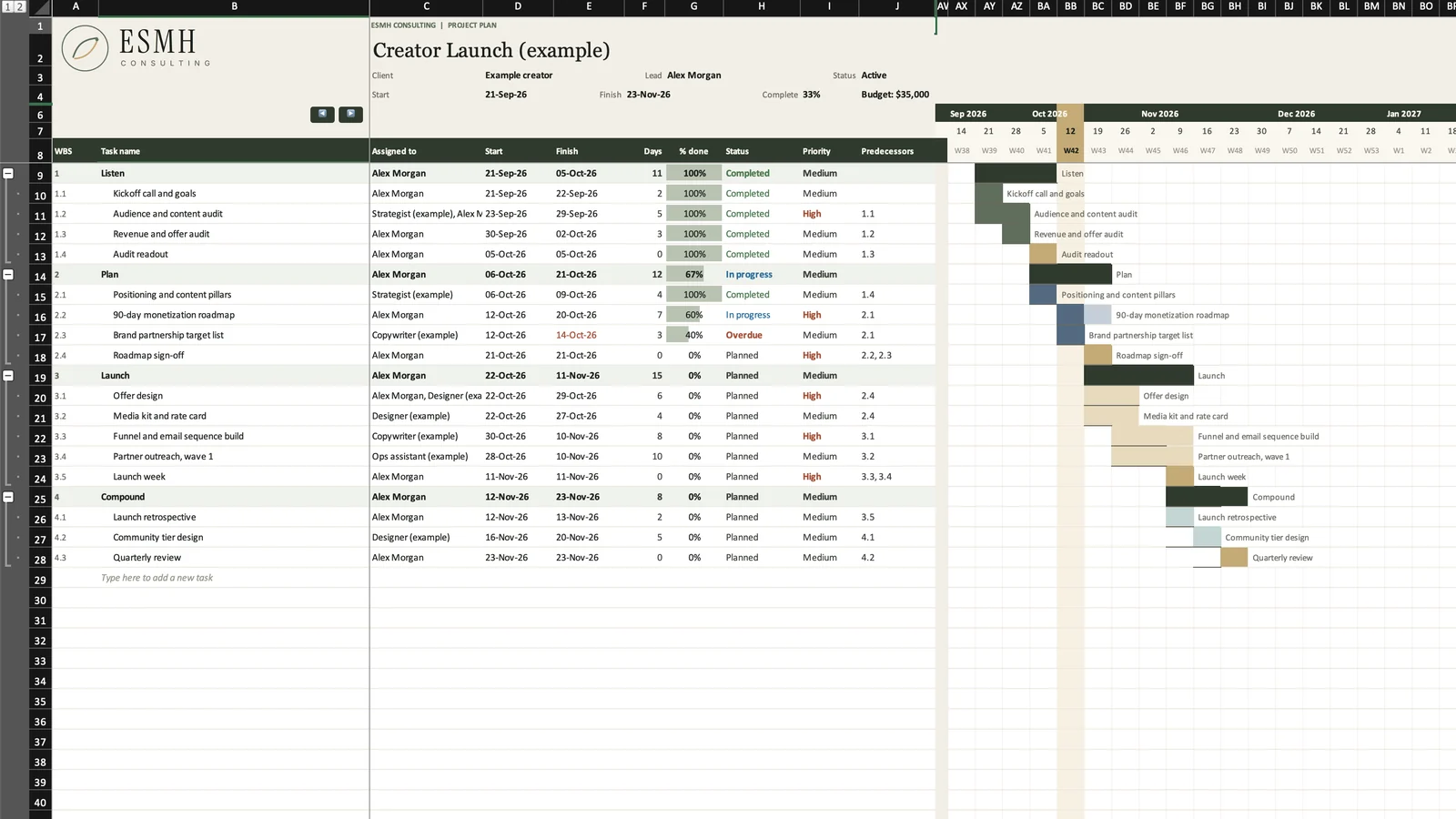
Three steps to a working plan.
Pick Excel or Google Sheets. Whop delivers it after a quick free sign-up with your email address.
In Excel, enable macros when asked. In Google Sheets, make your own copy and allow the script once.
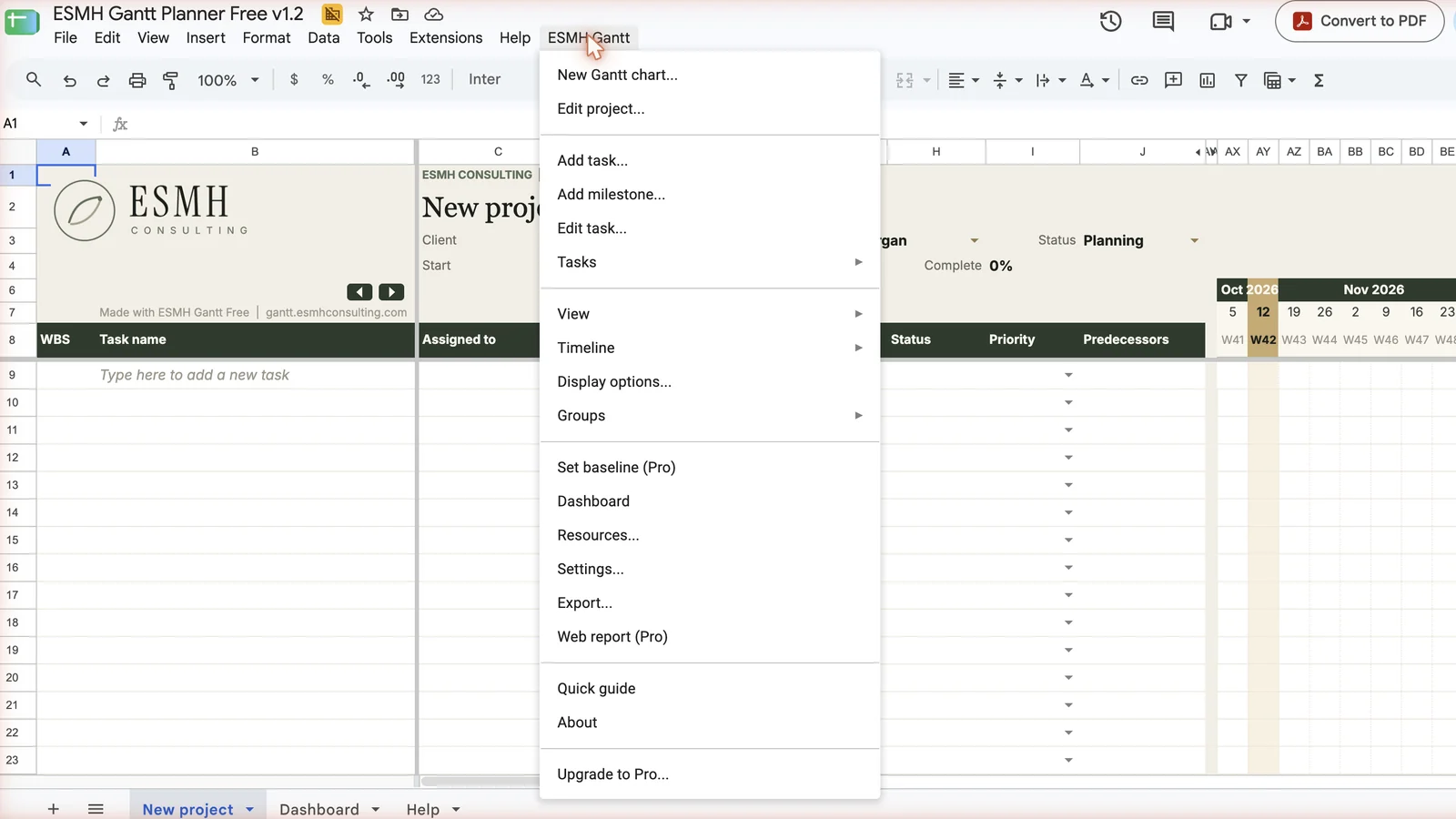
Add tasks, milestones and phases in the pop-up windows. The Gantt bars and timeline follow.
Built for consultants, freelancers and small teams who plan client work. Features marked Pro need the Pro edition.
Tasks, milestones and phases each open in their own pop-up window, so you never have to type into raw cells. If you prefer typing, enter a task name in the “Type here to add a new task” row.
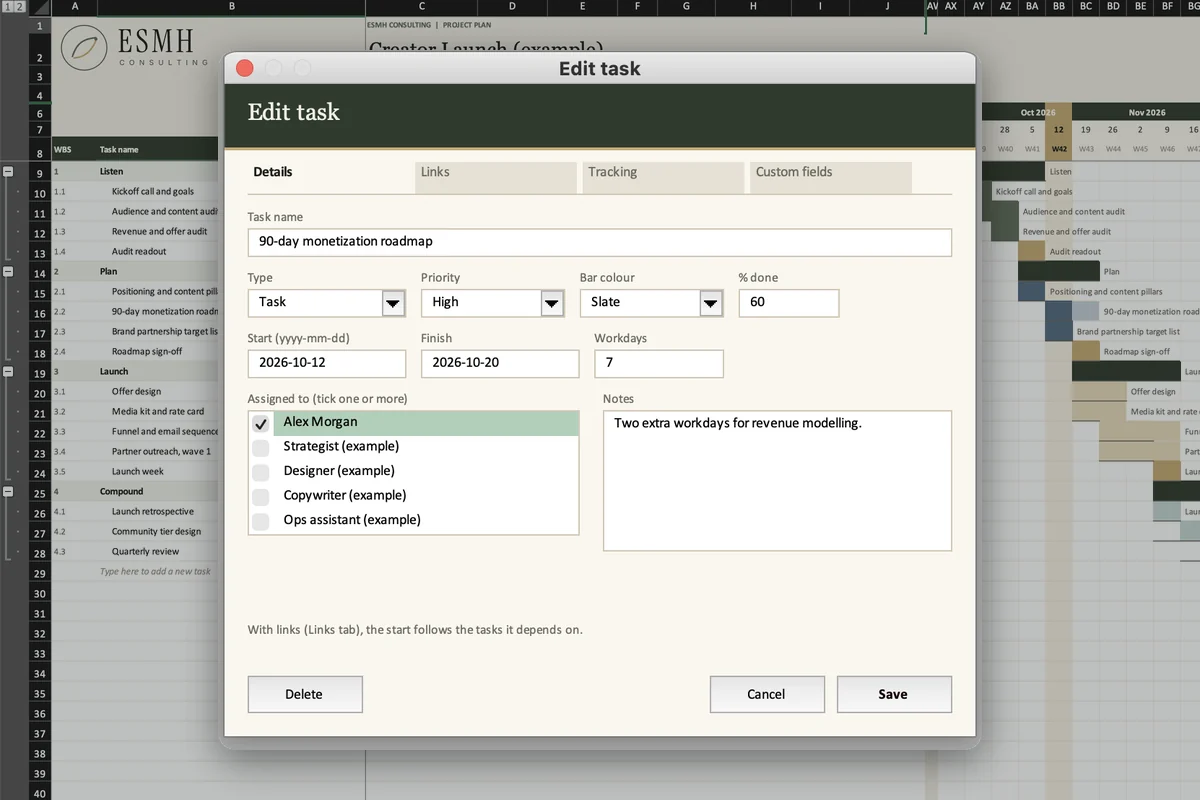
Set your working days, holidays and links. The planner works out the dates.
Daily, weekly, monthly, quarterly, half-yearly and yearly views, with a today marker. Move the timeline, jump to a task, or show the whole plan.
Set your working days and company holidays. Finish dates are calculated from the start date and duration.
Finish-to-start links in every edition. Pro adds start-to-start, finish-to-finish and start-to-finish, lag, a link picker and drag-to-link: select from a bar to another task’s row. Loops and self-links are blocked.
See which tasks set the finish date, and how much float the others have.
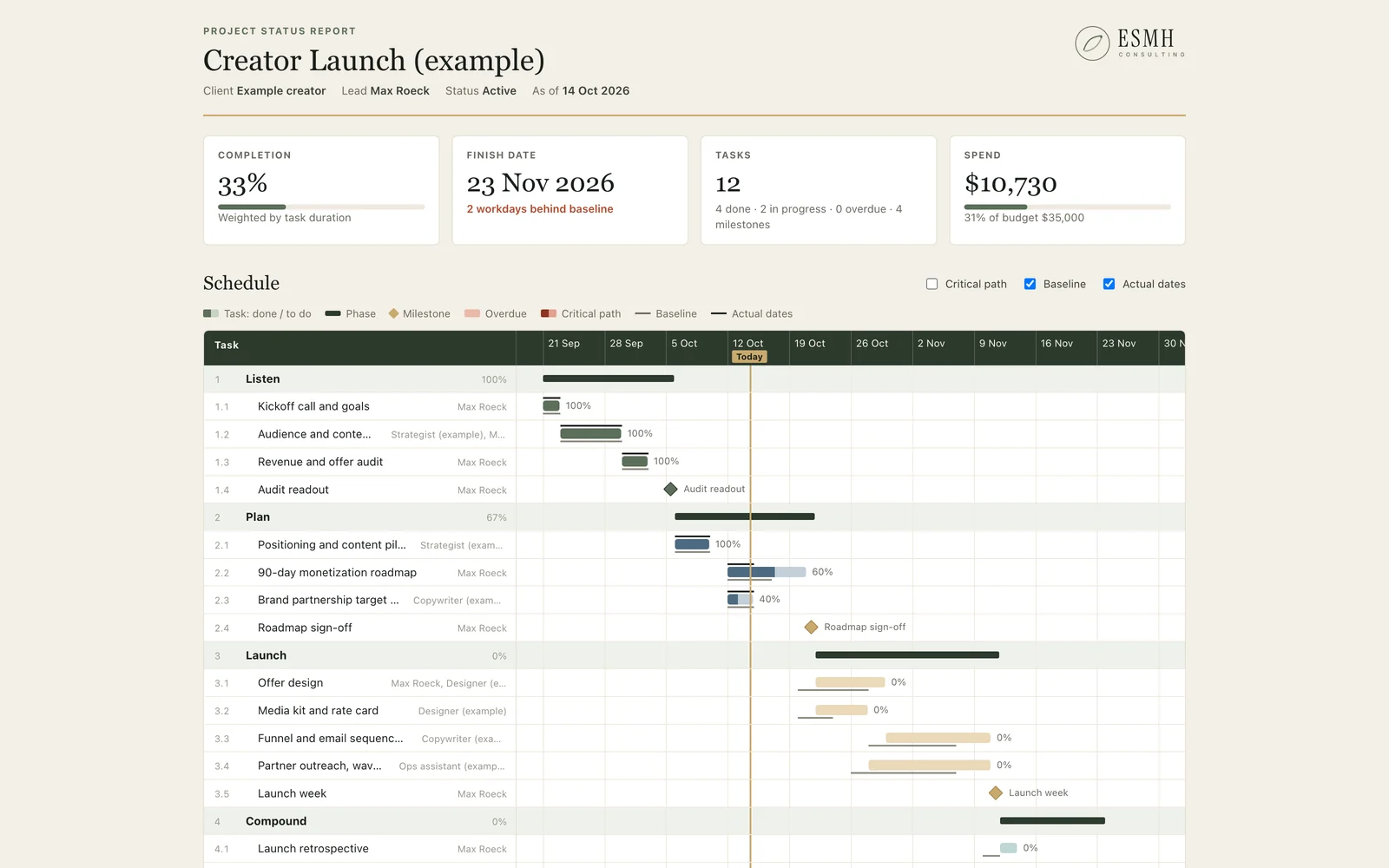
Type % done, let it be worked out from the dates, or mark a task complete. Pro adds baselines and actual start and finish dates, with a Done tick that records them.
Up to 20 custom columns of your own: text, number, currency, date, percent or a drop-down list. They show on the chart and in the task window.
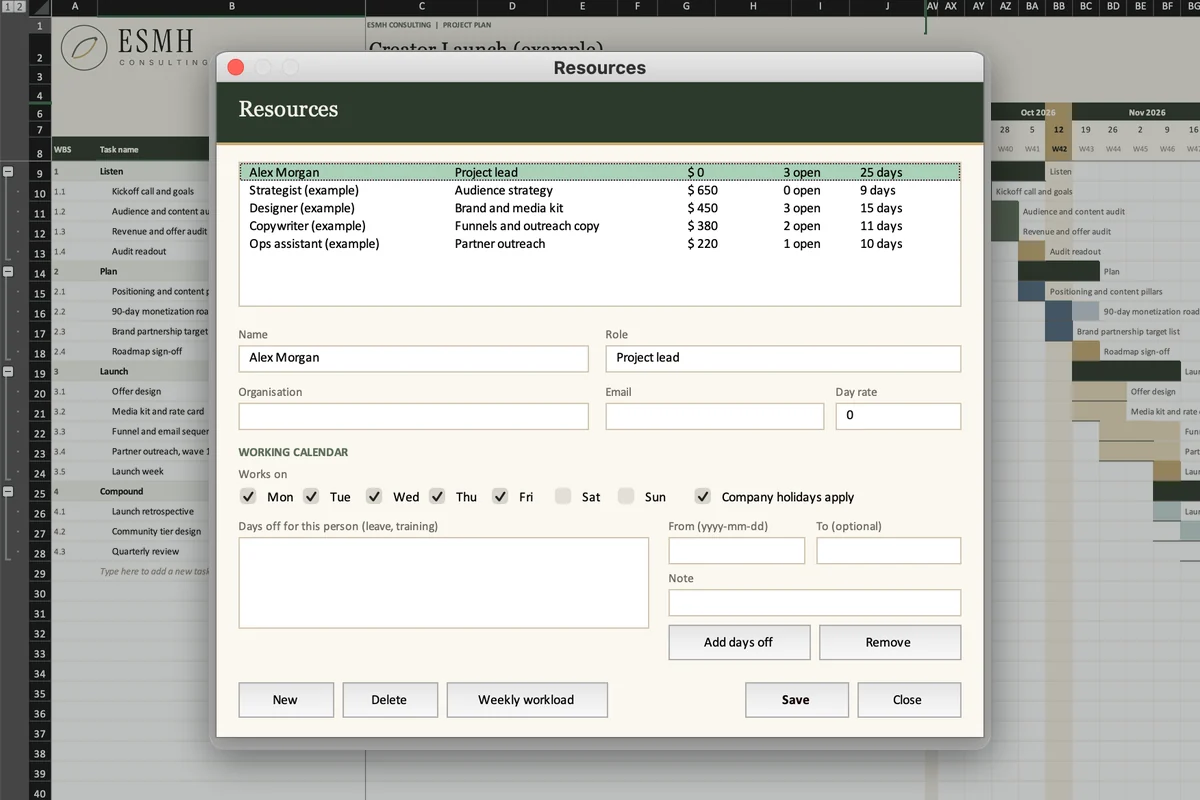
Put several people on a task. With Pro, give each person a day rate and their own calendar, and see who is busy when and what the work costs.
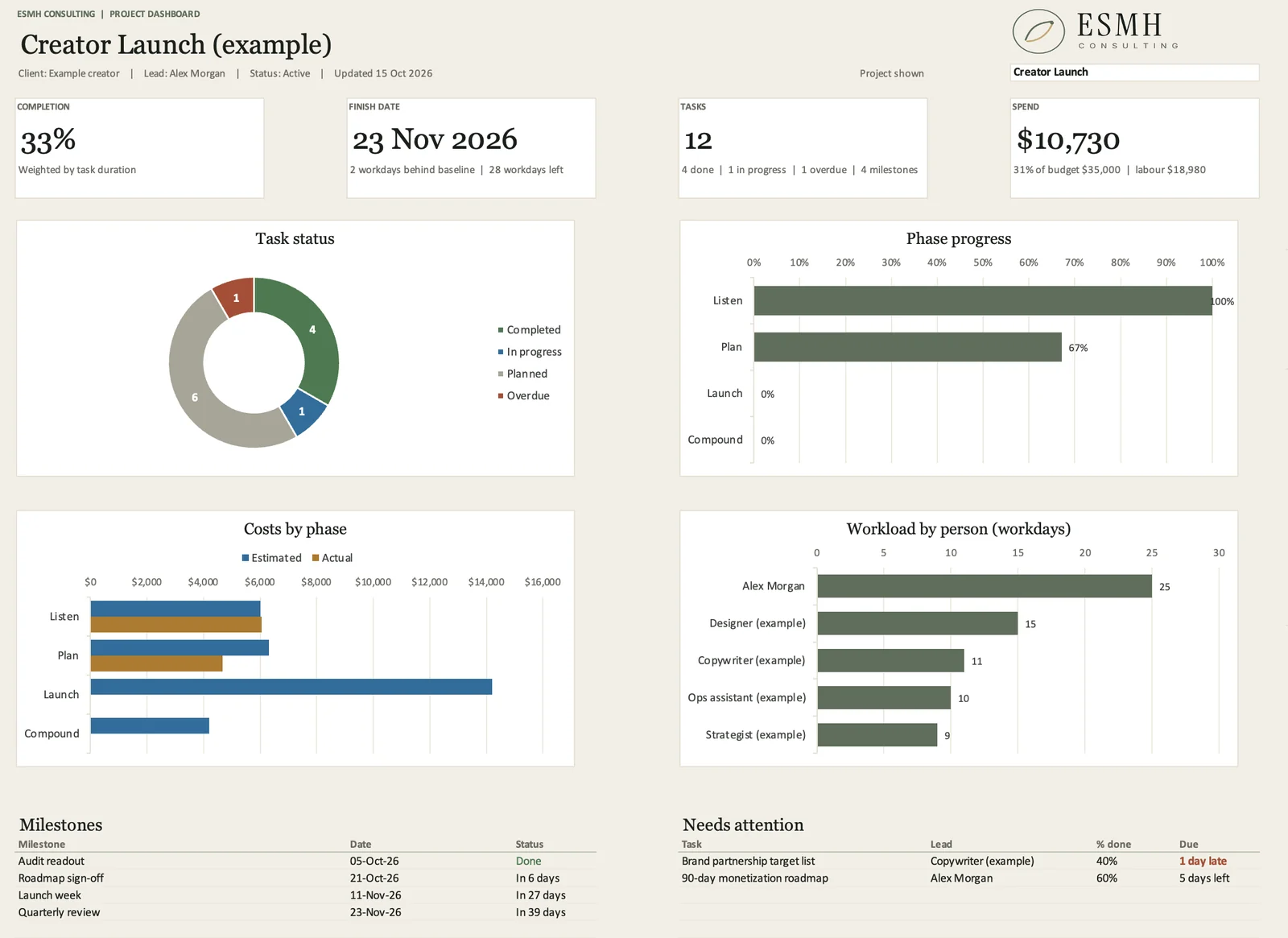
The dashboard shows completion, finish date, task status, phase progress, milestones and the tasks that need attention. With Pro it also shows costs against budget and the workload by person.
Turn the plan into something you can send. The web status report is a single HTML page your client can open in any browser, or that you can print.
The planner comes in two versions. Pick the one where your work already lives.
Pick Excel if you plan in desktop Excel and like to keep each plan as a file.
Pick Google Sheets if your work already lives in Google Drive, or you do not use desktop Excel.
Start with Free. Move to Pro when your plans grow. You keep your plan when you upgrade.
Free
One project of up to 30 tasks. Free for personal and commercial use.
Quick free sign-up on Whop with your email address.
Coming soon
Unlimited projects and tasks, and the full planner.
Free users can upgrade from inside the file with “Upgrade to Pro” and keep their plan.
| Feature | Free | Pro |
|---|---|---|
| Projects | 1 chart | Unlimited |
| Tasks | Up to 30 | Unlimited |
| Task windows, phases, milestones, timeline views | Yes | Yes |
| Working days and holidays | Yes | Yes |
| Links | Finish-to-start only | Also start-to-start, finish-to-finish, start-to-finish, lag, link picker, drag-to-link |
| Critical path and float | No | Yes |
| Baseline, actual dates, done tracking | No | Yes |
| People | Names only | Day rates, own calendars, days off, workload, labour cost |
| Costs and budget | No | Yes |
| Dashboard | This project | Also all projects, costs, workload, over-budget % |
| Excel copy export | No | Yes |
| Web status report | No | Yes |
| PDF export | With a small “Made with ESMH Gantt” line | Clean |
| Custom columns | No | 20 |
Custom branding
We build a custom version of the planner with your logo, colours and fonts, made from your style guide.
Custom builds are priced separately from Pro. It starts with a conversation about what you need.
Or write to gantt@esmhconsulting.com.
The planner’s windows, buttons and calculations run as macros inside the workbook. Excel asks before it runs macros in any file, so you see this prompt when you open the planner. Click Enable Macros (Mac) or Enable Content (Windows). Only enable macros in files from a source you trust.
If Windows blocks the macros because the file came from the internet, close the file, right-click it, choose Properties, tick Unblock and click OK. Then open it again.
The Google Sheets version runs a script that lives in your own copy of the sheet. The first time you use it, Google asks you to allow the script. Because it is a script in your own copy and not a published app, Google shows a one-time “unverified app” screen. Click Advanced, then the link to continue, and allow access.
The script runs under your own Google account. It asks only for access to the current spreadsheet and permission to show its windows.
Yes. The Excel version runs in desktop Excel 2016 or later, including Microsoft 365, on Mac and on Windows. It uses macros, so it does not run in Excel on the web, on iPad or on phones.
The Google Sheets version works in any desktop web browser (Chrome, Edge, Safari, Firefox) on Mac, Windows, Linux or ChromeOS, with a free Google account or a Google Workspace account. Some Workspace administrators block scripts; if the ESMH Gantt menu does not appear, ask yours. The menu and its windows do not work in the Sheets apps for phones and tablets.
No. The Excel version needs Microsoft Excel: its ribbon tab, windows and macros do not run in LibreOffice Calc, Apple Numbers, WPS Office or OnlyOffice. These apps can open the file, but the planner will not work in them. If you do not have desktop Excel, use the Google Sheets version in your browser.
No. With Excel, your plan lives in your own workbook. With Google Sheets, it lives in your own Google account. We do not receive your plan data. Reports and PDFs go only where you send them.
Yes. It is free for personal and commercial use, for one chart of up to 30 tasks. You get it through Whop after a quick free sign-up with your email address.
Yes. Choose “Upgrade to Pro” inside the file and keep your plan. Pro is not on sale yet. Ask to be notified when it is.
For help, email gantt@esmhconsulting.com. For refunds, see the terms.
One chart, up to 30 tasks, free for personal and commercial use.
Delivered through Whop after a quick free sign-up with your email address.